Batch Processing
Convert thousands of images in seconds
DataraIMG's batch engine processes files in parallel across all your CPU cores. Drop a folder of 500 photos and have them all converted before you finish your coffee.
Batch features
Parallel Processing
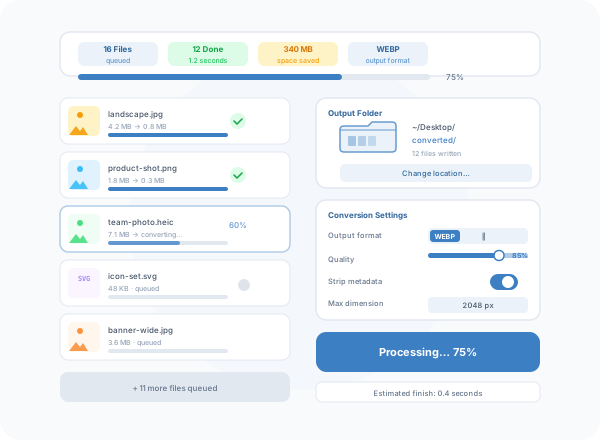
Converts multiple files simultaneously using all available CPU cores. A 16-core machine converts roughly 16 images at once — finishing batches in a fraction of the time.
Folder Drop
Drop an entire folder onto DataraIMG and it picks up every supported image inside — including nested subfolders. No need to select files individually.
Live Progress
See a progress bar for every file in the queue, plus an overall completion percentage and estimated time remaining. No guessing how long the job will take.
Consistent Settings
Apply the same format, quality, and resize settings to every file in the batch. Change once, apply everywhere. No per-file dialogs.
Size Report
After the batch completes, DataraIMG shows total input size, total output size, and space saved — both as a total and per file.
One-Click Output
Choose an output folder once and DataraIMG writes all converted files there with the same filename and a new extension. No confirmation dialogs.
Go-Powered
Native speed. Real parallelism.
Most image tools process files one at a time. DataraIMG uses Go's goroutines to run as many conversions in parallel as your CPU supports. On an 8-core Mac, a batch of 100 photos converts in roughly the same time as converting 12 on a single thread. The more cores you have, the faster it goes.
- Goroutine-based parallel pipeline
- Saturates all CPU cores automatically
- No memory bloat — images streamed, not buffered
- Handles batches of thousands without issues
- macOS, Windows x64, and Windows ARM64
Workflow-First
Built for every workflow
DataraIMG fits into the way you already work. Drag a folder from Finder or File Explorer, configure once, and convert. The output folder opens automatically when done so you can get back to work without digging through menus.
- Drag-and-drop from any source
- Remembers output folder between sessions
- Remembers last format and quality settings
- Auto-opens output folder on completion
- Works offline — no internet required
Batch benchmarks
100
Images in ~1.5s (M3 Max)
500
Images in ~6s (M3 Max)
85%
Typical size reduction
0
Cloud uploads required